
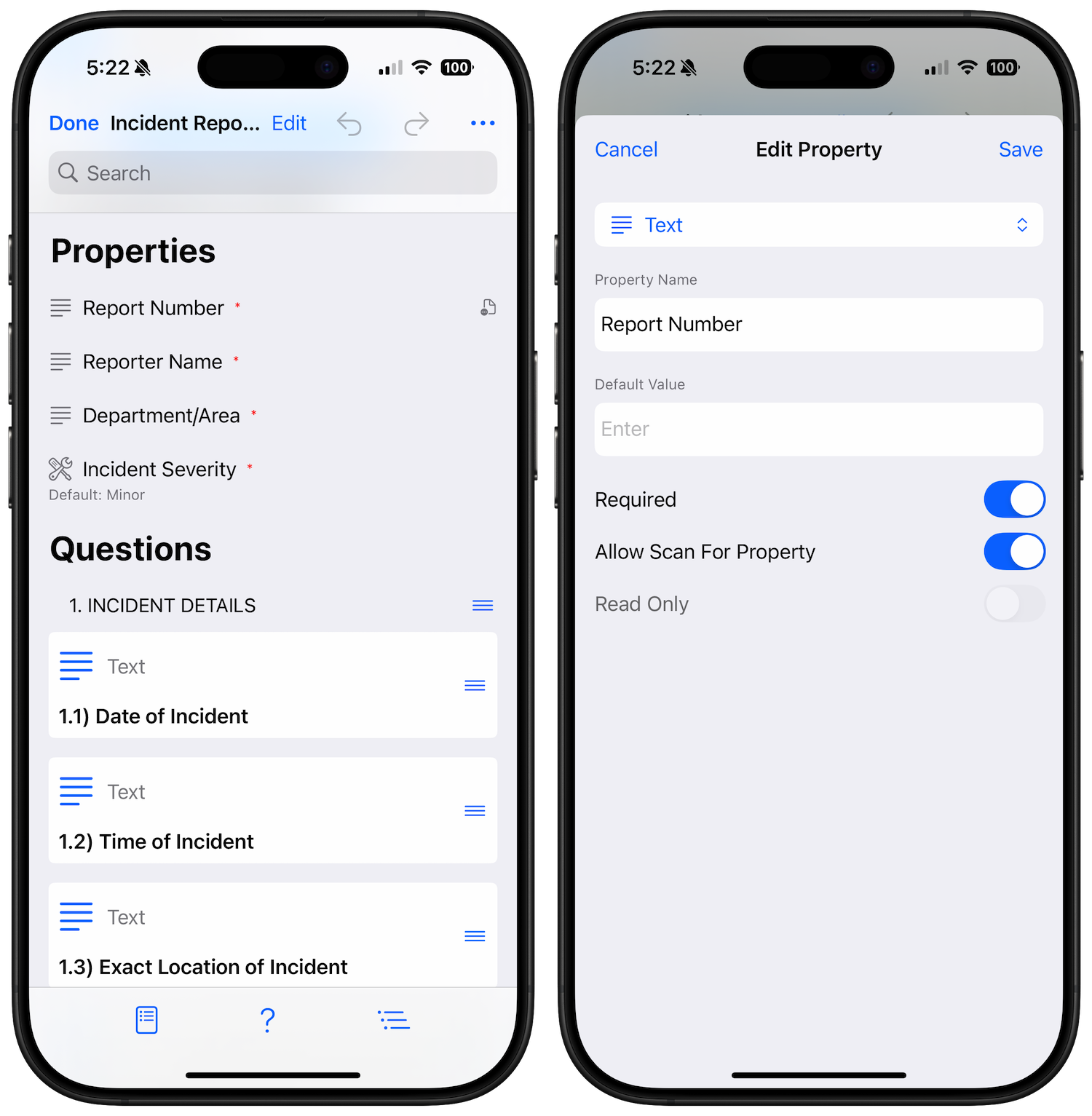
Properties are customizable data fields that collect essential information before starting an audit. They serve as metadata that provides context and ensures all necessary information is captured upfront. Properties appear on the audit details screen and must be filled out based on their configuration before proceeding to audit questions.
Overview
Properties allow you to:
- Capture inspector names, locations, equipment IDs, and other metadata
- Create dropdown lists for standardized data entry
- Enable barcode/QR code scanning for quick data input
- Set required fields to ensure critical information isn’t missed
- Include property values in audit filenames for better organization
- Create read-only fields for displaying fixed information
Adding Properties to Templates
Quick Add Methods
- Tap the Property button on the floating toolbar
- Use keyboard shortcut Shift+Cmd+P
- Long press on any item and select “Insert Property Above/Below”
Property Types
Text Properties
Text properties are the most common type, allowing free-form text entry with optional features:
Configuration Options:
- Name - The label displayed above the input field (e.g., “Inspector Name”, “Location”, “Equipment ID”)
- Default Value - Pre-filled text that appears when creating new audits
- Saves time for frequently used values
- Can be overridden during audit creation
- Required for read-only properties
- Required - When enabled, the audit cannot start until this field is filled
- Empty required fields are highlighted in red
- Validation occurs when attempting to start the audit
- Scan Available - Adds a barcode scanner button to the field
- Supports QR codes, Data Matrix, PDF417, and more
- Ideal for equipment IDs, serial numbers, locations
- 2D barcodes recommended for best accuracy
- Read Only - Makes the field non-editable
- Requires a default value
- Useful for displaying template version, company name, etc.
- Shown with a lock icon
Custom Type Properties
Custom type properties provide dropdown selection from predefined choices, ensuring data consistency and speeding up data entry.
Creating Custom Types:
- When adding a property, change type from “Text” to “Custom”
- Select an existing custom type or tap “Add Type” to create new
- Give your custom type a descriptive name (e.g., “Building Names”, “Shift Types”)
- Add answer choices one by one
- Tap “Add” to save the custom type
Configuration Options:
- Default Selection - Pre-select one or more choices
- Single select: Tap to select default choice
- Multi-select: Check multiple defaults
- Multiple Selection Enabled - Allow selecting multiple choices
- Changes from radio buttons to checkboxes
- Users can select all that apply
- Results stored as comma-separated values
- Required - At least one choice must be selected
Managing Properties
Reordering Properties
- Drag and drop properties to change their order
- Properties appear in the same order during audit creation
- Logical ordering improves user experience
Editing Properties
- Tap on any property to edit its configuration
- Changes apply to future audits only
- Existing audits retain their original property values
Copying Properties
- Long press on a property and select “Copy”
- Paste into the same or different template
- Useful for standardizing properties across templates
Deleting Properties
- Swipe left on a property to delete
- Or long press and select “Delete”
- Deletion cannot be undone
Best Practices
Property Naming
- Use clear, descriptive names
- Avoid abbreviations that might confuse users
- Consider adding units if applicable (e.g., “Temperature (°F)“)
Using Required Properties
- Only mark truly essential fields as required
- Too many required fields can frustrate users
- Consider using default values for commonly required fields
Custom Types vs Text
- Use custom types when you have a finite set of valid options
- Custom types ensure data consistency for reporting
- Text properties are better for unique or variable data
Barcode Scanning
- Enable scanning for fields that commonly use barcodes
- Test with actual barcodes in your environment
- Provide manual entry as backup option
Common Use Cases
Equipment Inspections
- Equipment ID - Text property with scanning enabled
- Location - Custom type with building/area choices
- Inspector - Custom type with a list of inspector names
- Shift - Custom type (Day/Night/Weekend)
Safety Audits
- Department - Custom type with department list
- Audit Type - Custom type (Routine/Incident/Follow-up)
- Previous Issues - Text property for notes
- Risk Level - Custom type (High/Medium/Low)
Quality Control
- Batch Number - Text with scanning enabled
- Product Line - Custom type with product names
- QC Technician - Text property, required
- Sample Size - Text property with numeric keyboard
Technical Details
Data Storage
- Property definitions stored within template files
- Property values saved with each audit
- Custom types stored in app settings and sync via iCloud
- Multi-select values separated by tilde (~) character internally
Export Behavior
- All property values included in PDF/HTML exports
- Multi-select values displayed as bullet lists
- Empty optional properties omitted from exports
- Property order preserved in exports
Validation Rules
- Property names cannot be empty
- Read-only properties must have default values
- Custom types must have at least one answer choice
- Answer choices cannot contain tilde (~) character