Here’s a further explanation of the numbered items above:
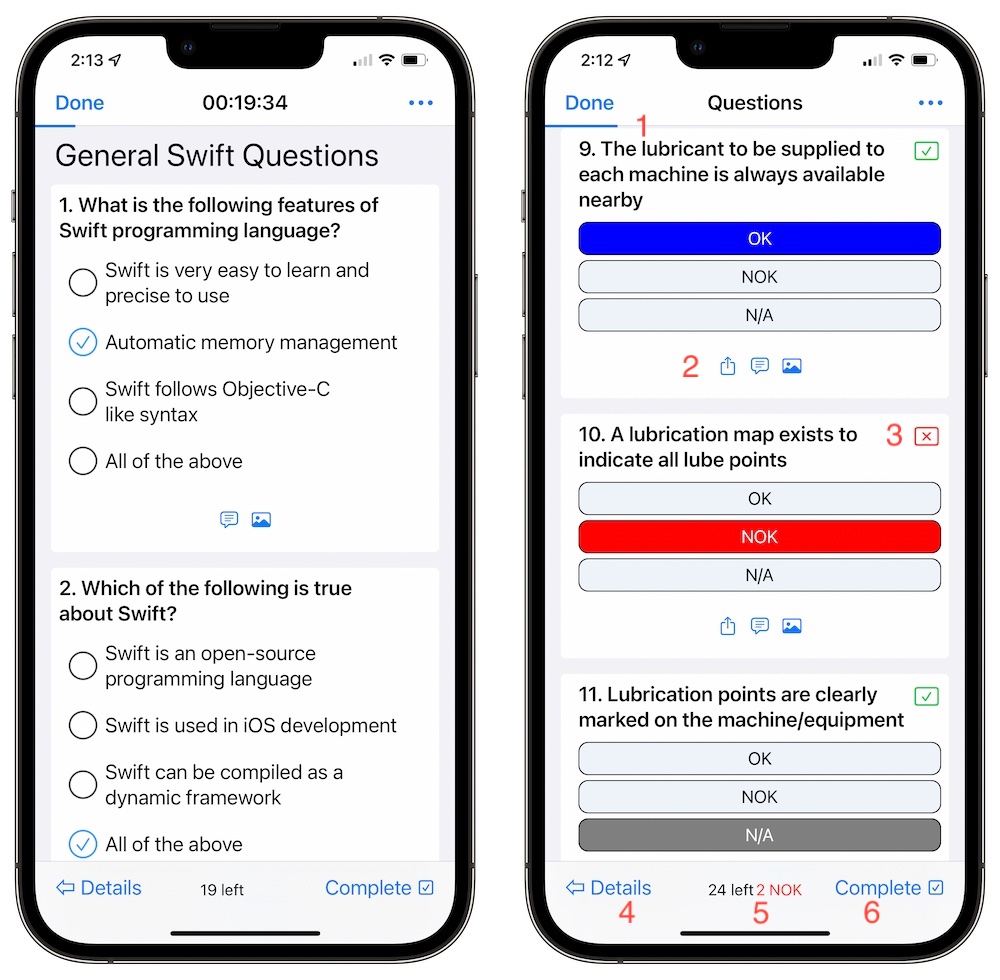
- Progress Bar: This will indicate progress of answer questions.
- Action Buttons: A series of buttons based on the question type. The following actions are available.
 Sharing- Available if option is selected in template editor. Will open the sharing manager, and copy the contents of the questions, responses and answer.
 Comment - Available in every question type. Learn more here.
 Media - Available in every question type. Learn more here.
 Scanner- Camera scanning of barcodes for data entry. Only available for text and number question types.
 Date - Contains 4 styles of date entry for text. Also includes a calendar picker.
- N/A - If enabled in the question editor, bypass a question.
 Signature - Tap to apply a signature. Only available for the signature question type.
- Compliance Indicator: The compliance indicator will indicate the response is failing or passing. This is not shown during running tests.
- Details Button: This button will return you to the details screen.
- Progress Score: The progress score will show how many questions are left to answer. If working in an audit, it will show failing responses.
Pro Tip: Tap the progress score to navigate to the first unanswered question.
- Completion Button: When you are finished with audit or test, tap the button to start the completion process.
… Menu
The … menu in the upper right navigation bar offers some options as well.
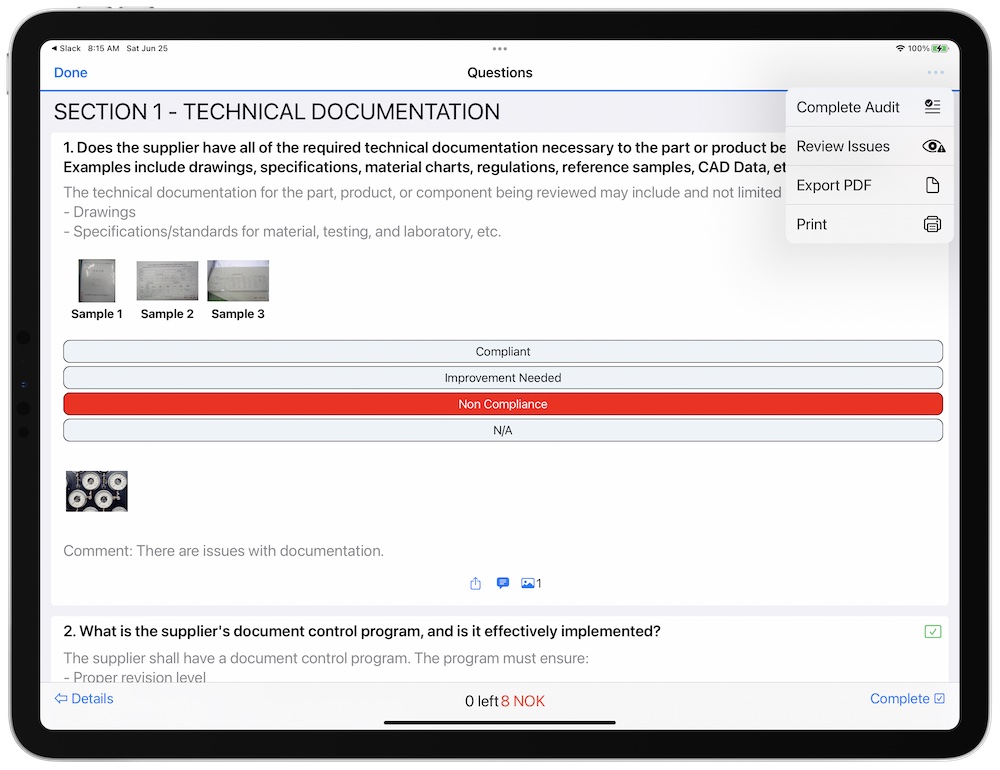
- Complete Audit: Like in the bottom toolbar, you may choose this option to complete an audit.
- Review Issues: Select this option to bring up the review issues navigator.
- Export PDF: If exporting is enabled in the template, then this option is available. Export the audit or test as a PDF. We do not recommend exporting for tests.
- Print: If printing is enabled in the template, this option is also available to print the audit or test. We do not recommend printing for tests.