
The template editor is where you create and customize audit templates. The editor provides a comprehensive interface for defining questions, properties, and completion actions that will be used in your audits.
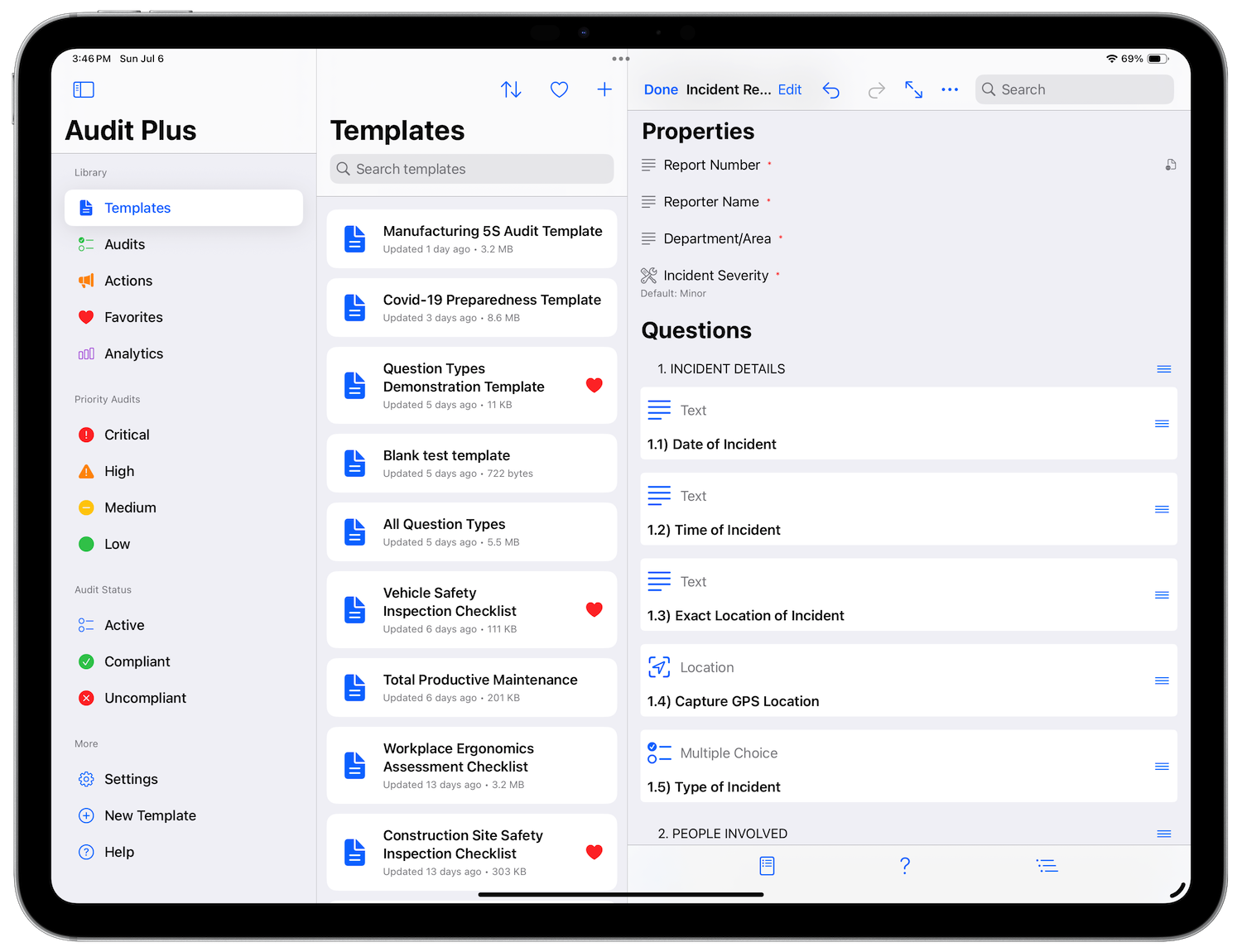
Navigation Bar
The template name appears in the navigation bar, showing the filename you specified when creating the template. The navigation bar contains several important controls:
More Options Menu (…)
The ellipsis button in the navigation bar reveals a menu with the following options:
- Start Audit - Create a new audit from this template
- Preview Audit - See how the audit will appear to users
- Lock Template - Password-protect the template to prevent unauthorized editing
- Help - Access documentation and support resources
Note: There are multiple ways to start an audit that are discussed in another document.
Edit Mode
The Edit button enables selection mode for bulk operations. When in edit mode:
- Select All - Select all visible items
- Select None - Deselect all items
- Tap items to select them for copying or deletion
- Drag selected items to reorder them
- Tap Done when finished editing
Undo/Redo
The editor maintains a complete history of your changes. Use the undo and redo buttons in the navigation bar to revert or replay actions. These buttons automatically enable/disable based on available history.
Search
The search field allows you to quickly find properties and questions within your template. When searching:
- Type to search through all content
- Use scope filters: All, Properties, or Questions
- Results update in real-time as you type
Floating Toolbar
A context-sensitive toolbar appears at the bottom of the screen, providing quick access to common actions:
Standard Mode
- Add Property - Create a new custom property field
- Add Question - Add a new question to the template
- Add Section - Insert a section header to organize questions
- Paste - Appears when you have copied items ready to paste
Edit Mode
- Copy - Copy selected items to clipboard
- Delete - Remove selected items
Template Sections
The template editor organizes content into four main sections:
1. Details
Configure basic template information and settings:
- Description - Brief description of the template’s purpose
- Version - Track template version numbers
- Created By - Author information
- Logo - Add a logo image to the template
- Category - Organize templates by category
- Location - Enable location tracking for audits
- Permissions - Control sharing, exporting, and printing options
2. Completion Tasks
Define actions that occur when an audit is completed:
- Extract Media - Automatically extract photos/videos from completed audits
- HTTP Servers - Send audit data to external servers via POST requests
- Send Emails - Configure email recipients for audit results
- Show Log - Display completion log to users
- Lock PDF - Prevent editing of exported PDFs
- PDF Password - Password-protect exported PDFs
3. Properties
Custom fields that appear in the audit details screen. Properties allow you to capture additional metadata specific to your audit needs. This section only appears if you’ve added properties to the template.
4. Questions
The core content of your audit template. Add various question types including text, numbers, dates, yes/no, multiple choice, and more. Questions can be organized into sections for better structure.
Interactive Features
Context Menus
Long-press on any property or question to reveal a context menu with options to:
- Copy, Cut, or Delete the item
- Insert new items before or after
- Paste copied items at specific positions
Drag and Drop
Reorder questions and properties by dragging them to new positions. Visual feedback shows where items will be placed. Multiple selected items can be dragged together.
Keyboard Shortcuts
- ⌘Z - Undo
- ⌘⇧Z - Redo
- ⌘C - Copy (in edit mode)
- ⌘X - Cut (in edit mode)
- ⌘V - Paste
- Delete - Delete selected items
Template Protection
Templates can be password-protected to prevent unauthorized editing. When a template is locked:
- Only basic details are visible
- Editing is disabled until the correct password is entered
- Audits can still be created and previewed
- Use the more menu (…) to unlock or change the password
Subscription Limits
Free users are limited to templates with 15 questions or fewer. When this limit is exceeded:
- A notification banner appears at the top
- The template becomes read-only
- Subscribe to remove all limitations
Auto-Save and Sync
Templates are automatically saved as you make changes. The template file (.aptemplate) syncs across all your devices via iCloud, ensuring your work is always up to date.